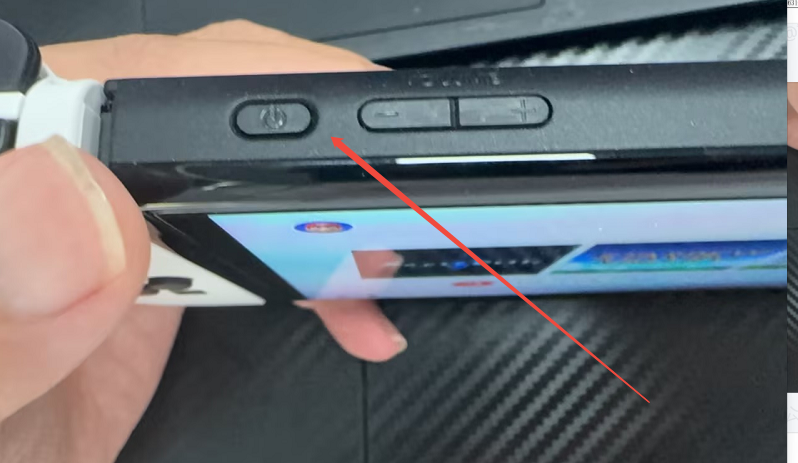
1.Power-on steps
Click the power button in the top-left corner.
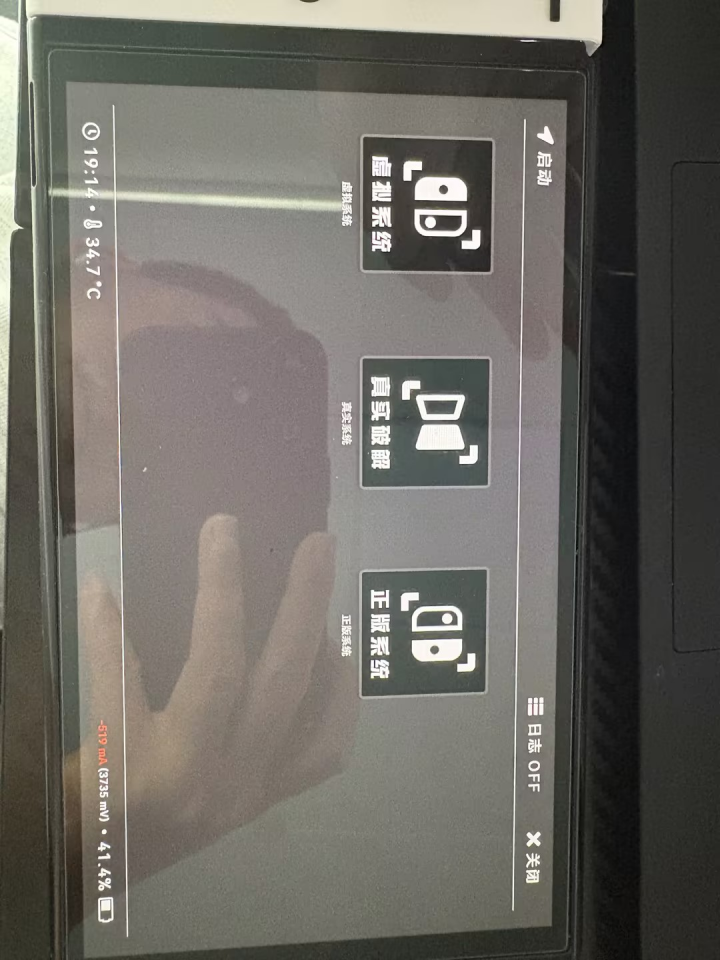
When the following page appears, click the first icon labeled “Start(启动)”
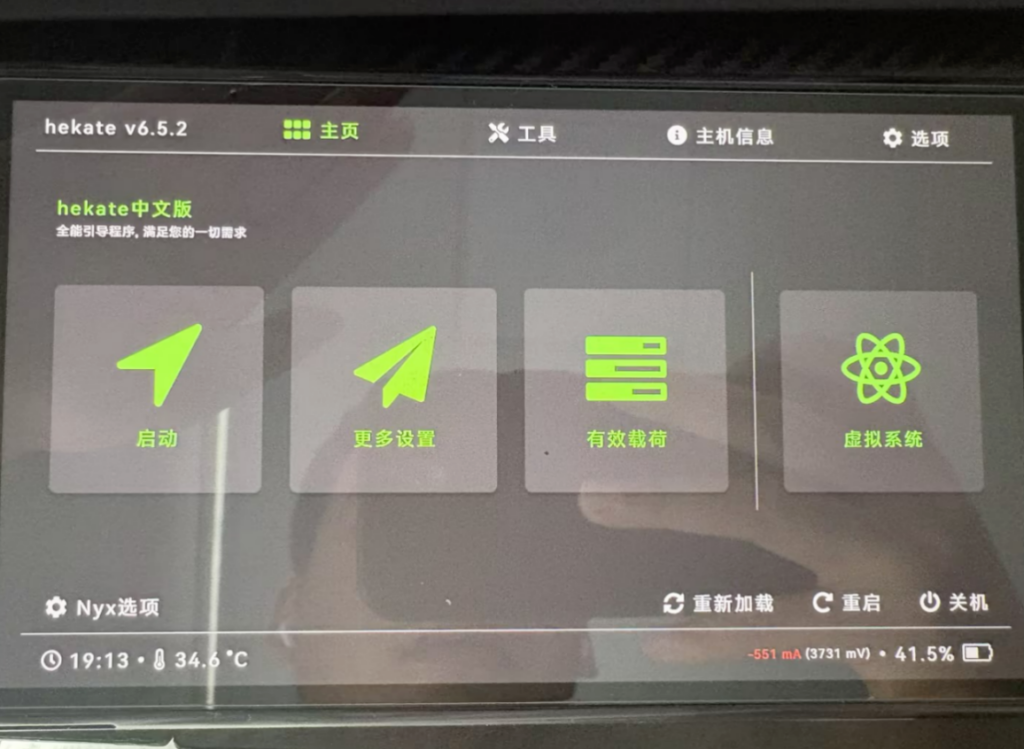
System Selection
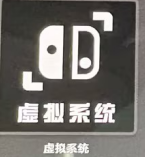
Virtual System—(Free Games; Offline Only)
Note: Do not click this option.
Official System—Click the third option.
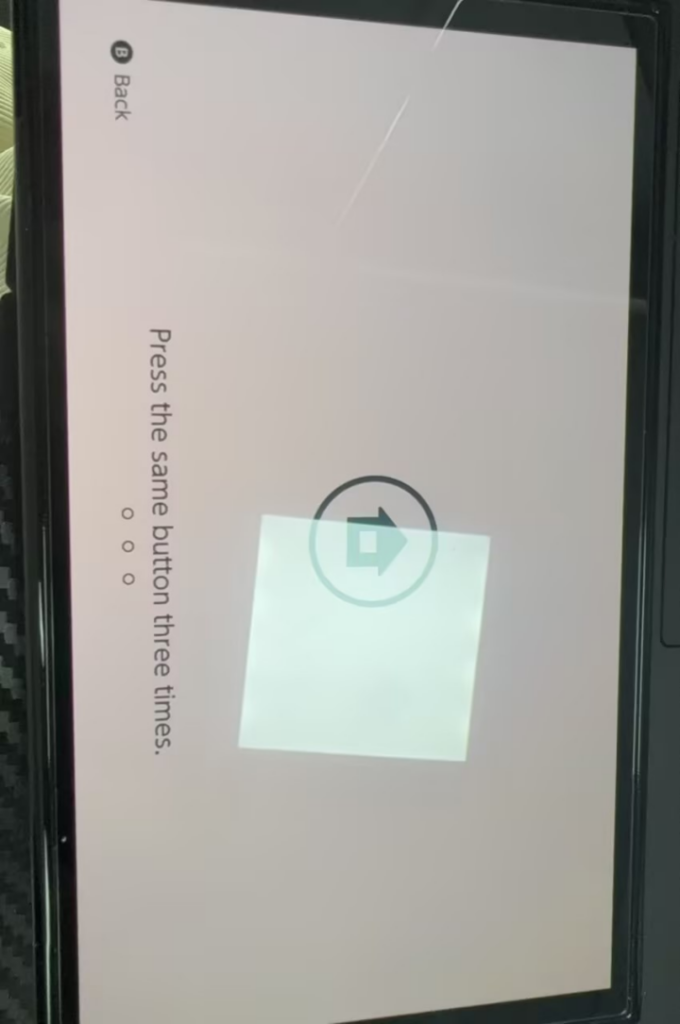
press the same button three times
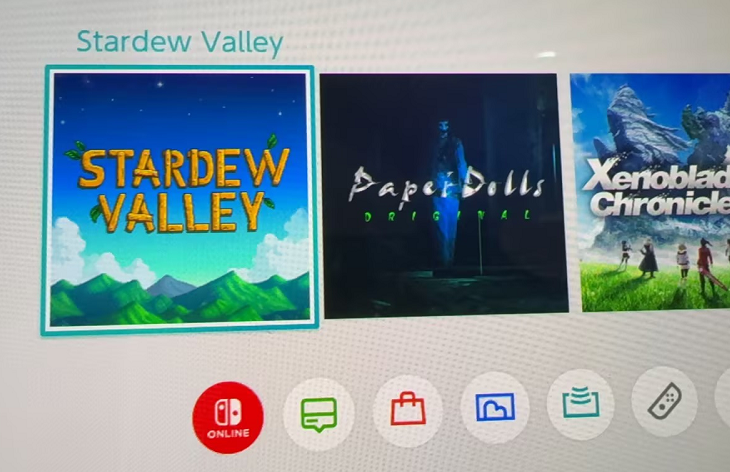
All of the following games are pre-installed and ready to play.
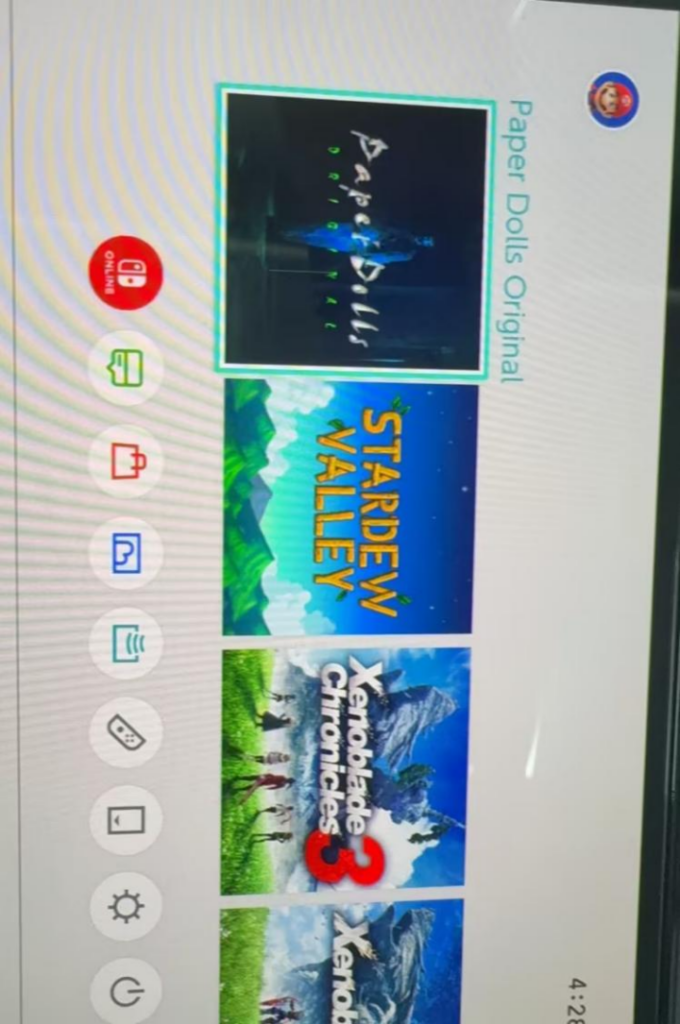
How to delete and add games in Hakate system
- Delete the games
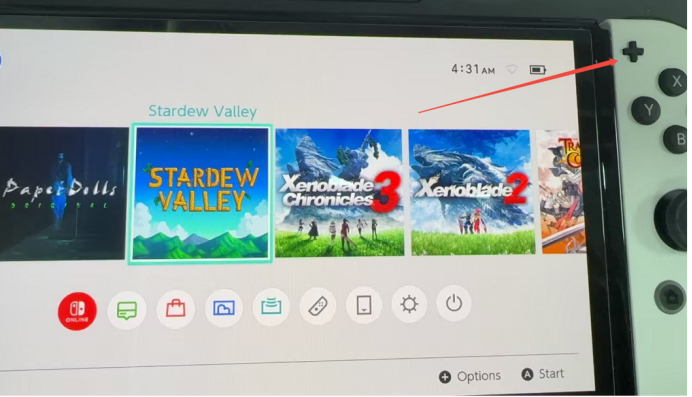
Select the game you wish to delete, then press the “➕ ” button located in the top-right corner of the controller.
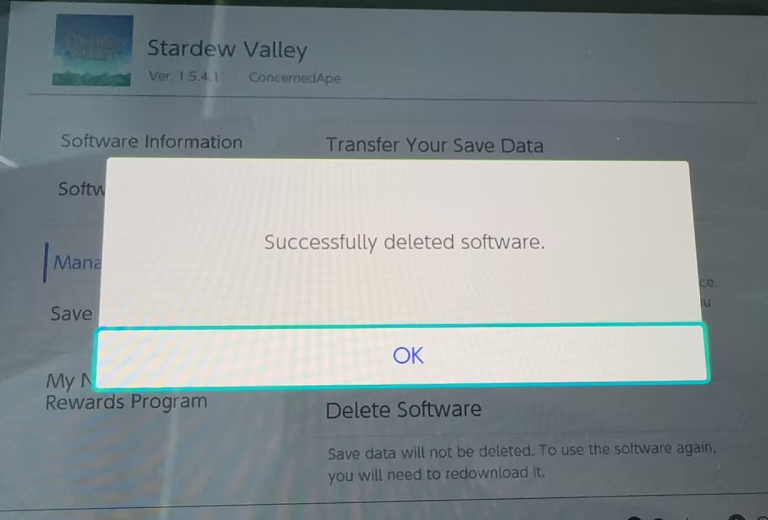
Taking 《Stardew Valley》 as an example:
Enter the Hakate system, Select 《Stardew Valley》, then press the + button located at the top right of the controller.
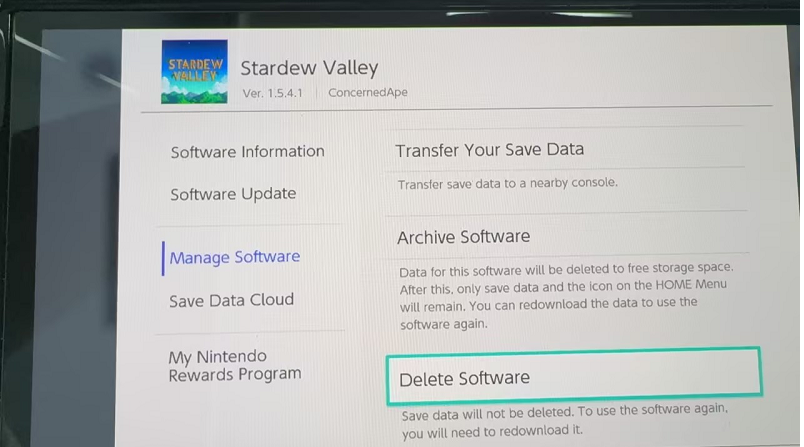
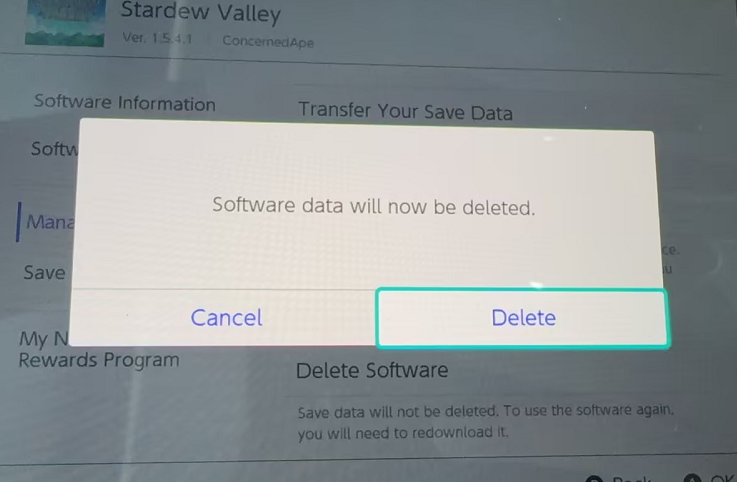
Pressing the ➕ button will bring up the following interface. Select “Manage Software” and then click “Delete Software” to delete the game.
- Add the games
Prepare a Windows computer,A data cable that supports data transmission.
Please note that it must be a Windows computer.
- Log in to this website and you can download all the free game resources.
Free download game website:
https://eggnsemulator.com/nintendo-switch-roms
https://romslab.com/category/switch-games
https://www.romspedia.com/roms/nintendo-switch
https://romsdroid.com/roms/nintendo-switch
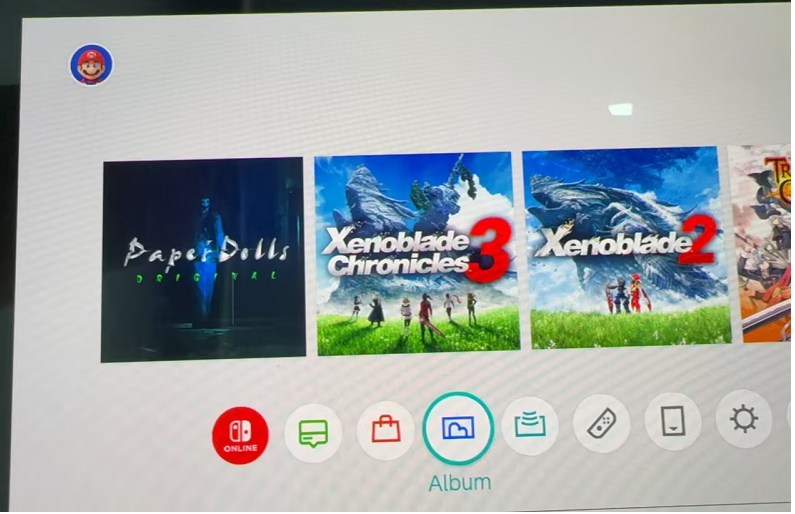
- Connect the game console to your computer using a data cable, then click “Album.”
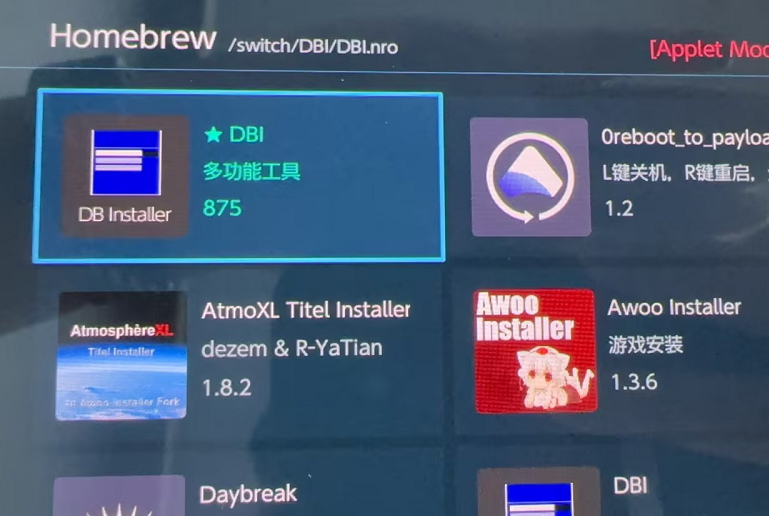
- Select DBI, then press A to open.
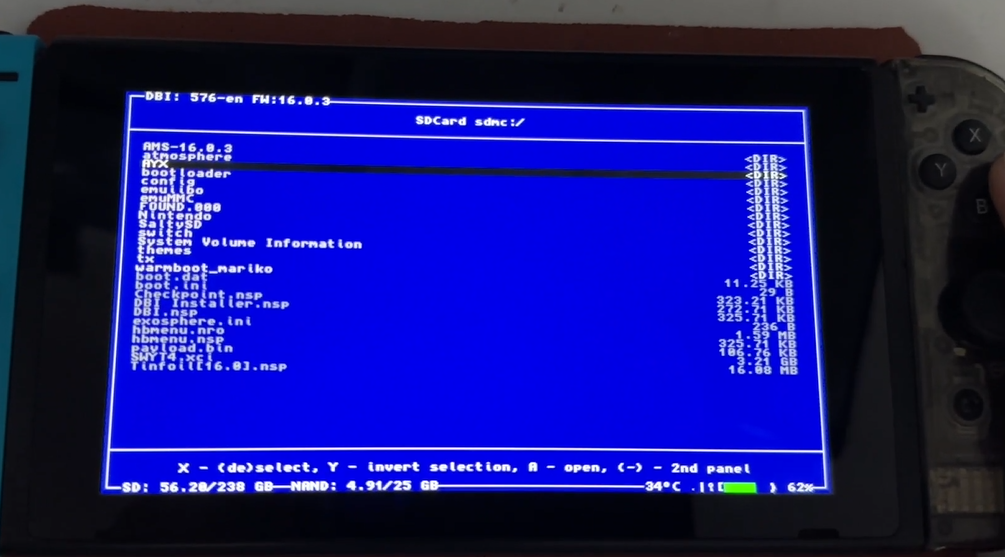
- After opening DBI, select “Run MTP responder”.
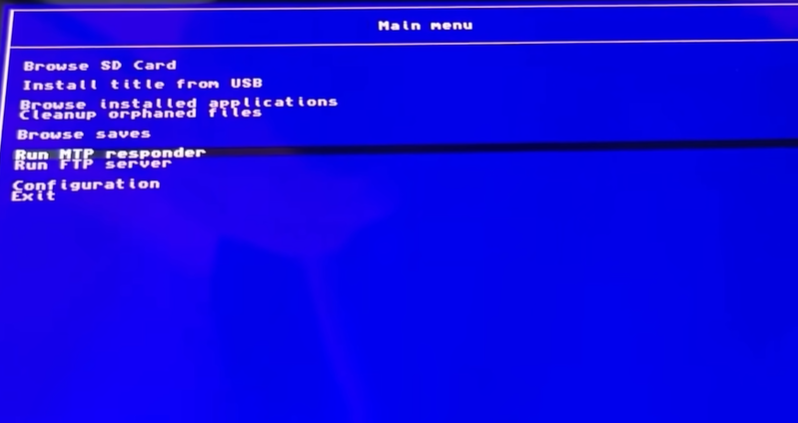
- When the game console displays this screen
- Go to your computer’s desktop → Open “My Computer.” You should see an icon labeled “Switch”; double-click it to open.
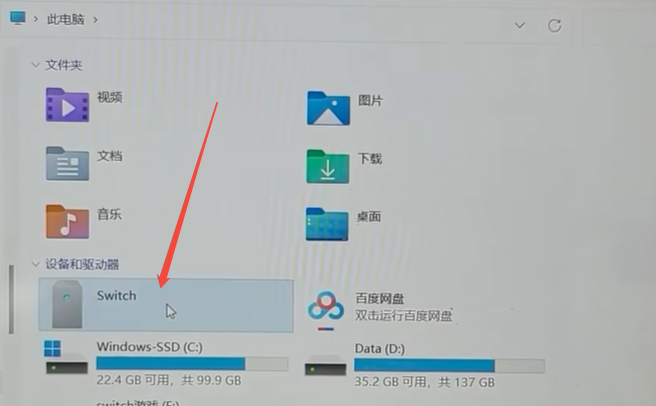
- Game Installation Directory: SD Card install (Note: Do not double-click to open.)

- the game installation package you need, using Stardew Valley as an example.
- After downloading the game installation package, simply drag and drop the “Stardew Valley” folder into the “SD Card install” folder (do not double-click to open “SD Card install”).
The computer displays the data transfer interface.
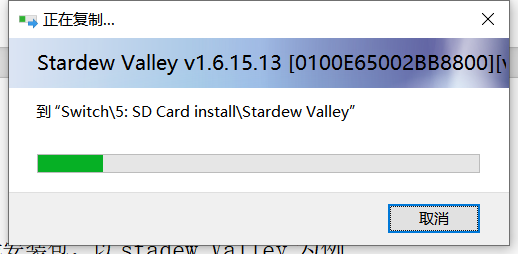
When the game console screen displays “Data transfer,” the game is being installed
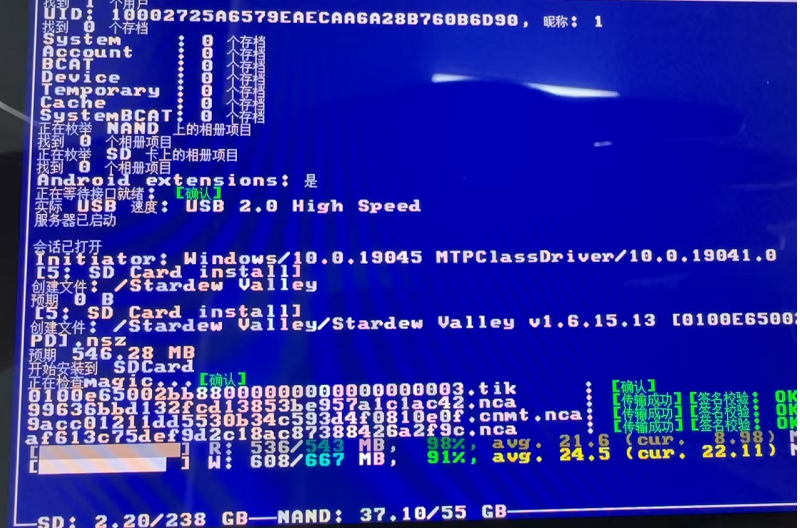
- Once the data transfer to the game console is complete—and the progress bar on your computer desktop has finished as well—
Installation successful page,Press “B” to back or Press “Home” to Back r; you should now be able to see the newly installed 《Stardew Valley》 on the game interface.